
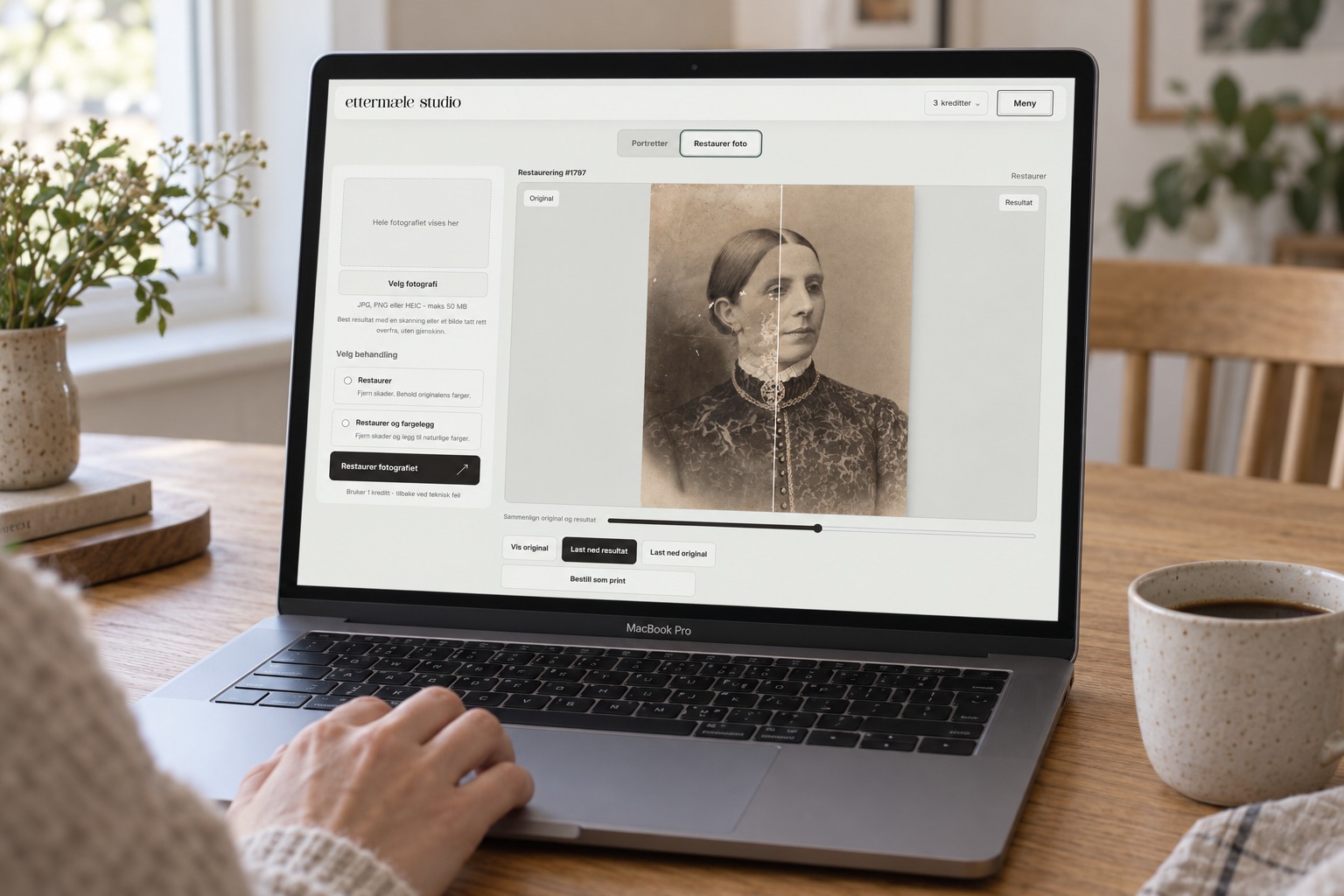
Studio at the dining table. An illustrative scene showing the workspace on ettermæle.no.
A childhood portrait. Your grandparents’ wedding photograph. A picture of the kitchen in the house where your family once lived. Some photographs mean more to us as the years go by. They show the people we come from and the moments we want to carry with us.
But printed photographs can become worn. Creases run across faces, colours fade, and small tears or stains hide details. Restoring old photographs helps make these memories easier to see, share and preserve, both for ourselves and for those who come after us.
Family heritage lives on in photographs, too
An old family photograph often tells us more than we first notice. The clothes, the surroundings and the way people stand together reveal something of another time. A familiar smile can connect a child with a great-grandparent they never had the chance to meet.
When we look after photographs, we also preserve small pieces of family history. Bring out the albums while someone can still tell you who is pictured, where the photograph was taken and what the occasion was. Keep names, the location and an approximate date alongside the digital copy. The story behind the photograph is part of your heritage.
A restored copy can be shared with siblings, children and grandchildren, even when family members live far apart. A photograph that once lay in a single drawer can find a place in several homes.
From a printed photograph to your phone
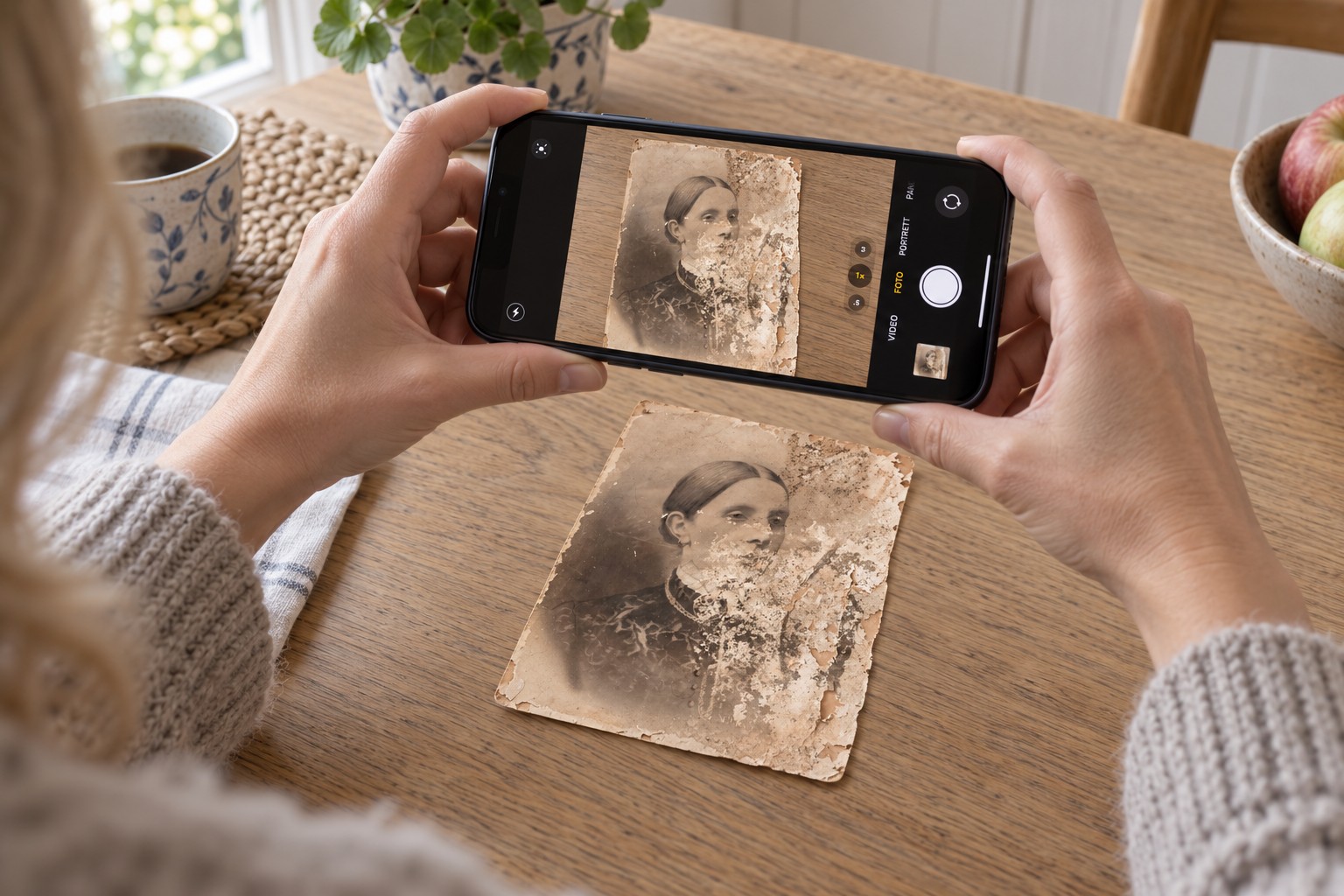
You do not need a scanner to get started. A good photograph of the print can provide a useful starting point for digital restoration. Find the photograph, lay it on a clean, dry table and take a little time to get the lighting right before picking up your phone.
Aim for a sharp, straight and evenly lit copy. Restoration has a better starting point when faces and details are clear and the surrounding table has been cropped out.
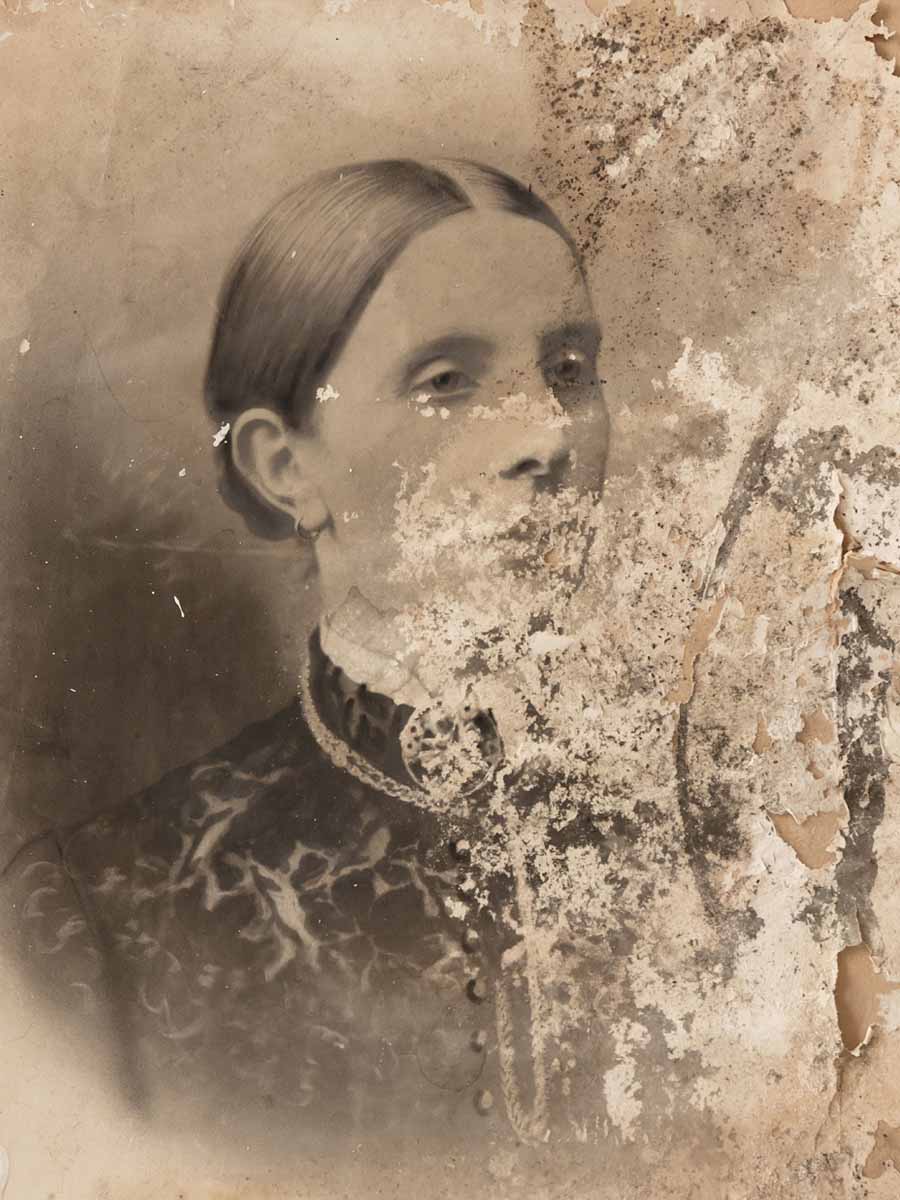
The same portrait.
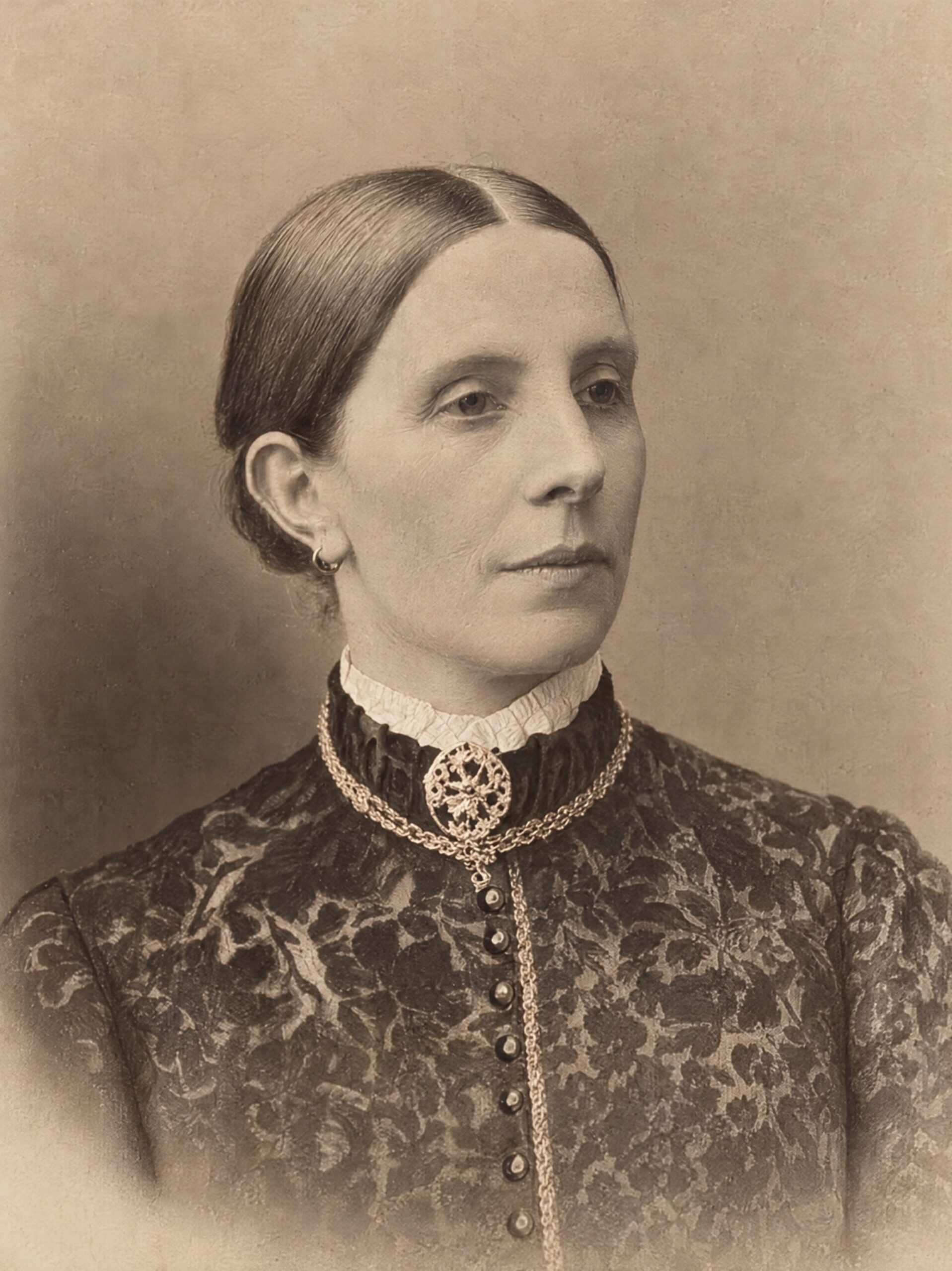
A fresh connection with the past.
Here you can see the original, with its flaking surface, discolouration and large damaged areas, alongside the restored version. Move the divider to see what has changed.
This is an example from Ettermæle Studio. The result depends on the original. Where details are missing, reconstruction is an interpretation, so look particularly closely at the face and expression.
A small childhood portrait, ready for new memories
Creases and cracks run across this old childhood photograph. In the restored version, the damage has been repaired and the face, hair and dress are clearer. Drag across the image to compare before and after.
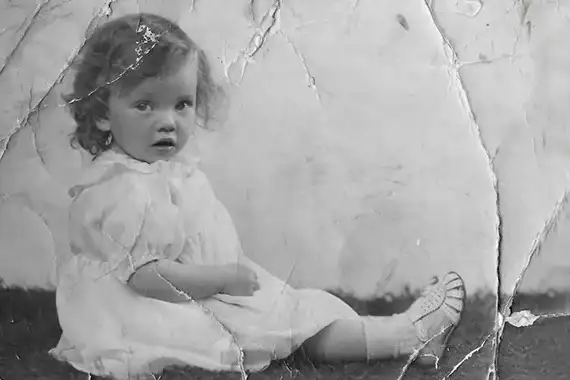
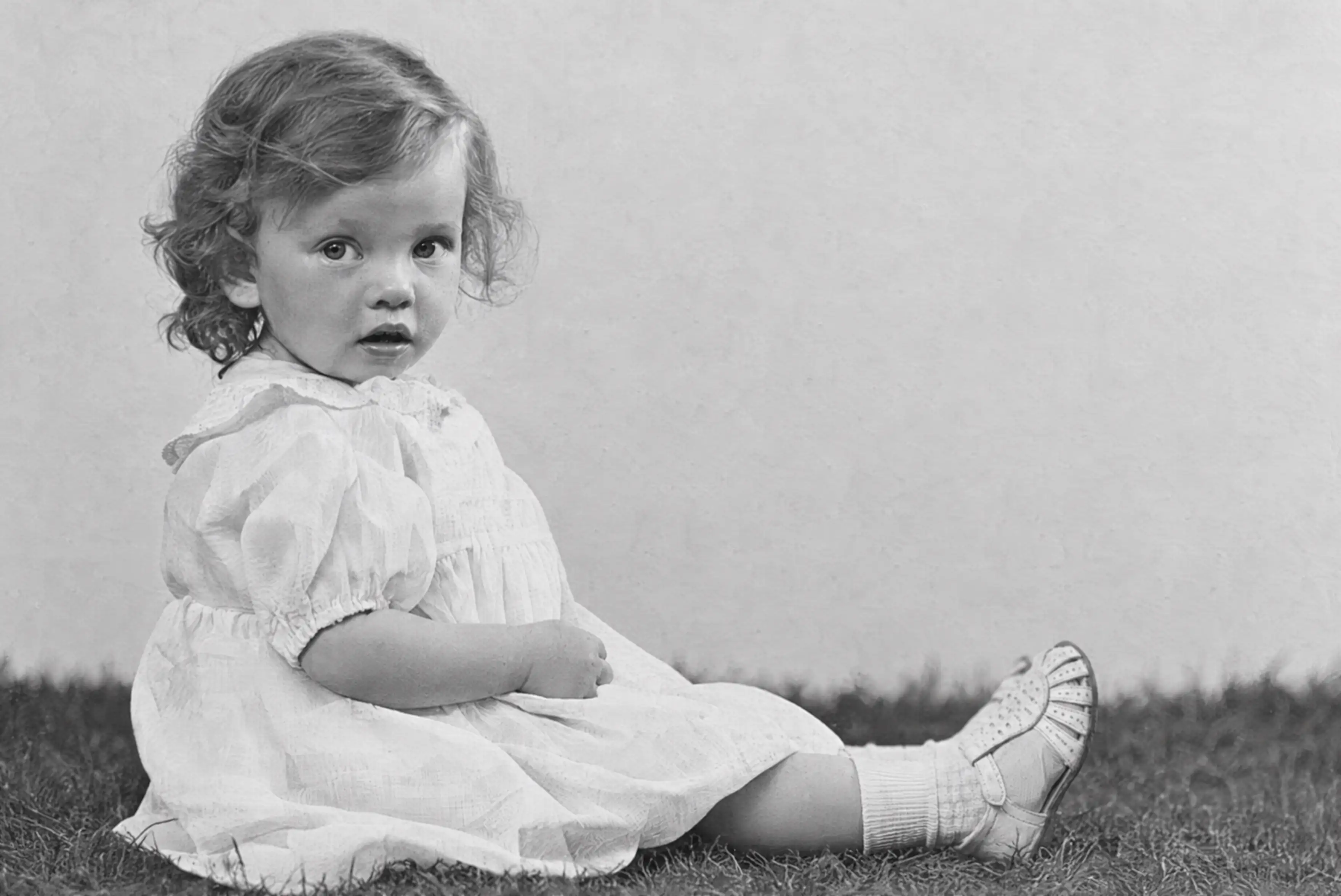
The original is just 570 × 380 pixels. The restored photograph is 3520 × 2352 pixels — around 38 times as many pixels. This family memory gains both a cleaner appearance and a much larger image file.
Higher resolution makes room for new prints
Restoration in Studio can also give your photograph a higher resolution. This can make an old photograph suitable for printing again, framing or giving a fresh copy to your family. In the example above, a small digital copy becomes a restored file with much more room for printing. Choose your print size according to both the resolution and how well the details hold up in the result.
How to photograph old prints with your phone
- Find even, indirect daylight. A table near a window is a good place to start. Avoid direct sunlight and bright ceiling lights that create glare on the surface. Turn off the flash.
- Check for shadows and glare. Make sure your phone, hands or body are not casting a shadow over the photograph. If you see a bright patch, adjust the position of the table or the lighting and try again. Photograph the print without glass in front of it, if it can safely be removed from its frame.
- Keep your phone parallel to the photograph. Take the picture from directly above, with the whole print in the frame. Avoid angled shots that make one end look narrower than the other. Use the normal camera mode rather than portrait mode, and avoid digital zoom.
- Check that the details are sharp. Clean the camera lens, tap the photograph on the screen to focus and hold your phone steady. Take several pictures if you can. Afterwards, zoom in on the face and choose the sharpest copy.
- Crop the image before uploading it to Studio. Open the image in your phone’s Photos app. Straighten it if necessary, then crop out the kitchen table, fingers and anything else around the print. Keep the entire photograph, including damaged edges. Avoid filters and automatic beauty effects.
- Upload the best-quality file available. Use the image file directly from your phone. A screenshot or a copy sent through a messaging app may have lost detail. Save an untouched digital copy as well, so you always have the original to refer to.
If you have a scanner, it can produce an evenly lit, detailed digital copy. Around 600 dpi is a good starting point for small photographic prints. Handle fragile photographs carefully. Studio works on the digital copy, while the original print should be kept safe.
Creases, scratches and faded colours: what can be improved?
Digital photo restoration works on a copy of the photograph. You keep the original print, while visible damage in the image can be reduced or repaired digitally. Common problems include:
- Creases and scratches that create light or dark lines across the image.
- Stains and discolouration that hide clothes, the background or parts of a face.
- Faded colours and low contrast that leave the photograph pale and difficult to make out.
- Tears, a flaking surface and missing paper that leave gaps or blank areas in the digital copy.
How much can be improved depends on the original and the extent of the damage. A scratch in the background presents a different challenge from an entirely missing face. Where details have been lost, reconstruction is an interpretation. Always compare the result with the original, especially facial features and expressions.
How to restore old photographs in Ettermæle Studio
Ettermæle Studio brings an advanced digital photo restoration tool into a simple workspace. You can restore old family portraits and other photographs directly in your browser, without learning complex image-editing software.
You can choose whether to keep the photograph’s original colour treatment or create a colourised version. Once the result is ready, you can compare it with the original before downloading it.
- Open “Restore photo” in Studio. Sign in and go to the photo restoration workspace.
- Choose your photograph. Upload a digital copy from your phone or computer. Studio supports JPG, PNG and HEIC files up to 50 MB.
- Choose a treatment. Select “Restore” to keep the original colours, or “Restore and colourize” to add colour.
- Start the restoration. Select “Restore photograph”. The treatment uses one credit from your Studio balance. If there is a technical failure, your credit is returned.
- Compare and save the result. Find the photograph under “Your images” on mobile, or in the results view on your computer. Compare the original and the result, download the file and decide whether you would like to order a print.
The whole process takes place in one workspace. You do not need to send away the original print, and both the original image and the result are available when you review the restoration.
Keep black and white, or choose colourisation
A black-and-white photograph may have a character you want to preserve. With “Restore”, the aim is to remove damage while keeping the photograph’s original colours, black-and-white appearance or sepia tones.
“Restore and colourize” offers another way to experience the photograph. Colour can make details in clothes and surroundings easier to notice, and bring a new sense of closeness to an old family portrait.
Colours added to a black-and-white image are an interpretation. They do not establish exactly what a dress, wall or pair of eyes looked like. Keep the original as well, and consider labelling the new copy as colourised.
A family memory to pass on
A restored photograph can make a personal gift: your parents’ wedding photograph for an anniversary, a childhood portrait for a milestone birthday, or a picture of grandparents as a Christmas gift for the next generation.
Include a few lines about the people in the photograph and the story behind it. That way, you give the recipient both a photograph and a connection to their family.
In Studio, you can download the result to share with your family. If you would like a physical gift, choose “Order a print” from the restored photograph. Select a size suited to the quality of the file, and examine the result carefully before ordering.
Frequently asked questions about photo restoration
Can I restore a photograph with missing areas?
It may be possible to improve areas where the paper is damaged or parts of the image are missing. The result depends on how much information remains in the photograph. Large losses, particularly in faces, cannot be expected to be recreated precisely.
Do old photographs have to be colourised?
No. Choose “Restore” if you want to keep the photograph’s original colour treatment. Colourisation is a separate choice.
What does a restoration in Studio cost?
One restoration uses one credit from your Studio balance, including when you choose colourisation. Current offers and top-up options are shown in Studio. If there is a technical failure, your credit is returned.
Can I download and print the restored photograph?
Yes. The results view lets you download both the result and the original, and includes an “Order a print” option. A suitable print size depends on the file’s resolution and the quality of its detail.
Find one photograph you would like to preserve. It might be the picture that finds a new place in the family album, with a story the next generation can carry forward.
Have a question before you begin? Get in touch.